
StudentSquare
What is StudentSquare?
StudentSquare is an easy-to-use communication tool for students and staff.
What you can do with StudentSquare:
- Receive messages from school by email, text or mobile app.
- Send messages to your teachers, coaches and other staff at school.
- Stay in the loop regarding late start days, extracurricular activities, and class projects.
- Subscribe to calendars, RSVP to events, complete forms, use sign-up sheets and participate in groups and clubs.
The ParentSquare apps are free and available in both the Apple iOS and Android stores (links below). You can also access StudentSquare on the web.
Start Using StudentSquare
-

STEP ONE: Log in
- Go to StudentSquare.
- Click Sign In with Google and enter your school email and password to sign in.
STEP TWO: Add your cell phone
- From Home, click your name at top right and select Manage Account.
- Click Edit Account in the left sidebar.
- From Edit Account, click Edit or Add next to Cell Phone.
- Enter your phone number and select Next. A verification code will be sent via email or text.
- Enter Verification Code and click Confirm.
- Scroll to the bottom of the page and click Save.

STEP THREE: Set your notification preferences
Update your account settings to customize the amount of notifications you will receive.
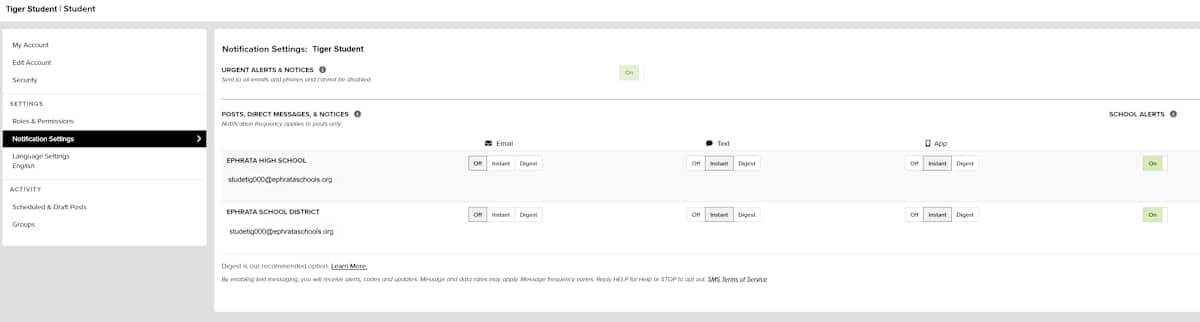
- From My Account, click Notification Settings in the left sidebar.
- Choose your preferences:
- Instant: Messages are delivered as soon as possible after a message is sent.
- Digest: Messages are delivered in the evening in the time zone of the message's institute. Digests only apply to posts. All other message types will still be delivered instantly if the user has their preference set to digest.
- Off: If the user selects Off, no notifications will be delivered to this email/phone/app for the school or district. Note: The Off setting is overridden for urgent alerts.
- School Alerts: Set preferences for alerts. Note: Urgent alerts are unaffected by these settings – they will be delivered regardless of user preferences.
- On: You will receive all Smart Alerts and Auto Notices from this school or district.
- Off: You will only receive Urgent Alerts and Critical Auto Notices.
- Set preferences separately by school or district.
-
STEP ONE: Log in

- Open the StudentSquare app.
- Click Sign In with Google and enter your school email and password to sign in.
In the app, use the bottom options to navigate through Posts, Messages, Alerts and Notices, and other content shared at your school.
STEP TWO: Add your cell phone
- From Home, tap the triple-bar Menu on the top-left.
- Select Account.
- Then select My Account.
- Select Edit at the top-right of the screen.
- Enter your cell phone number.
- Tap Continue.
- Enter the verification code received.
- Tap Confirm.
STEP THREE: Set your notification preferences

Update your account settings to customize the amount of notifications you will receive.
- Tap the triple-bar menu in the top left.
- Tap Account in the left sidebar and select Notifications.
- Choose your preferences:
- Urgent Alerts & Notices: this setting is managed by your school or district and can not be toggled on/off.
- School Alerts: toggle on/off receiving alerts.
- App Notifications: toggle on/off receiving app notifications. If toggled on, tap Digest or Instant to set frequency.
- Text Notifications: toggle on/off receiving text notifications. If toggled on, tap Digest or Instant to set frequency.
- Email Notifications: toggle on/off receiving email notifications. If toggled on, tap Digest or Instant to set frequency.