
ParentSquare
Streamlined communication for Ephrata School District families

The Ephrata School DIstrict uses ParentSquare for school communication, primarily with email, text, and app notifications. ParentSquare automatically syncs with Skyward to generate an account for each parent, using their preferred email address and phone number. We encourage parents to access their accounts, download the mobile app and update their preferences for when and how they wish to be notified.

What is ParentSquare?
Our goal with ParentSquare is to unify and simplify communication tools so you can stay connected easily with news, activities, classroom updates and events from your student's school - all in one place.
As a parent, you will be automatically enrolled, and receive communication from ParentSquare.
In additions to communication from your Student's teachers and schools, your ParentSquare account also provides you with emergency alerts. These alerts will be used to communicate weather delays, school closures or other emergency situations.
With ParentSquare you can:
- Receive messages from your school(s) and district via phone, email, text, or app notification
- Choose to receive information as it comes or all at once with a daily digest at 6pm
- Communicate in your preferred language
- Comment on school postings to engage with your school community
- Direct message teachers, staff, and other parents
- Access school and class information, calendars and more - all in one, centralized platform!

Video Tutorials
English
Spanish
Frequently Asked Questions
-
On the app, enter your email or cell phone number. It should match what is in the school's information system (Skyward).
On the web, click Sign In, then under Register, put your email or phone number and click Go.
If the email or phone number is not recognized by ParentSquare, please call the school office and ask them to update the contact information.
-
ParentSquare allows users to customize their notifications based on notification type and select their preferred delivery method for each school.
- The Instant setting will send all post notifications in real-time.
- The Digest setting sends direct messages, alerts, and time-sensitive posts instantly, but sends all non-time sensitive posts at the end of the day, reducing the number of notifications you receive daily. (We recommend the Digest setting.) Learn more about managing notifications.
-
Yes. All parents are automatically enrolled in a ParentSquare account. ParentSquare is the primary communication tool used by our district and schools. We strongly encourage all parents to register their ParentSquare account for full access to all features.
If you do not register your account, you will not be able to:
- Send or receive direct messages with teachers or staff
- Comment on posts or participate in two-way communication
- Customize your notification settings (instant vs. daily digest, email, text, or app notifications)
- Access the ParentSquare mobile app or log in to view messages and updates
- View past communications in one place
- RSVP to events, sign up for events, or complete forms
However, parents who do not “register”their account will still receive:
- A daily email digest of messages
- Attendance notifications
- Emergency alerts
-
Follow these quick steps to ensure Ephrata Schools has accurate contact information for your family and that your notification preferences are saved in ParentSquare.
VERIFY CONTACT INFORMATION IN SKYWARD:
- Log into Skyward Family Access
- Click on "My Account" in the top, right corner
- Once your phone number is updated, click "Save."
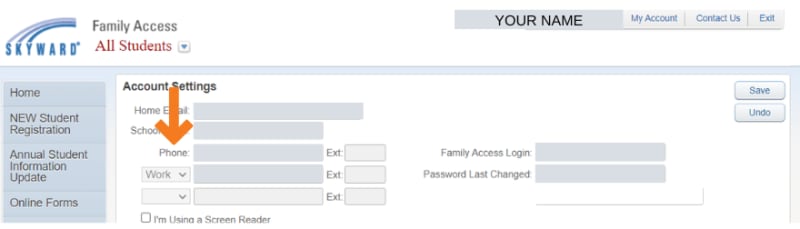
CHECK NOTIFICATION SETTINGS IN PARENTSQUARE:
- Log into ParentSquare or use the ParentSquare App by entering your phone number and password. If you are unsure of your password, just hit the “forgot password” button and follow the steps to create a new login.
- Follow these simple steps to check your notification settings.
Like any text message, you have the right to stop receiving messages any time. You can simply text STOP to any message received.
Please keep in mind that in the event of an emergency, these preferences will be overridden to ensure you’re kept up-to-date on any safety or security issue.
NOTE: If you delete your primary phone number in ParentSquare, you may still receive messages. Our system links to Skyward and is refreshed each evening, which means your deleted phone number will be restored to Skyward. If you no longer want to receive notifications, please change your notification settings using the instructions above.
STILL NOT RECEIVING MESSAGES:
- Check your spam folder for emails from donotreply@parentsquare.com.
- Add the domain ParentSquare.com or the email address donotreply@parentsquare.com to the safe senders list in your email client (Gmail, Yahoo, aol, etc.) You can search online how to do this. If using Gmail:
- Go to Settings.
- At the bottom of the pane, click Mail.
- In the left pane, select Mail > Accounts > Block or allow.
- Under Blocked Senders, select the address or domain you want to unblock, and then select.
- Text the word START to 66458. This will resume text messaging to your phone.
If you are still not receiving messages, please contact your child's school.
-
- Activate Your Account
Click the link in your activation email/text, or sign up on the ParentSquare website or via the ParentSquare app.
- Download App
It’s easy to stay in the loop with the ParentSquare app. Download it now. iOS | Android
- Set Preferences
Click your name in the top right to set your notification and language preferences.
- Get Photos & Files
Click Photos & Files in the sidebar to access pictures, forms, and documents that have been shared with you.
- Appreciate Posts
Click Appreciate in your email/app or website to thank a teacher or staff member for a post.
- Comment or Reply
Click Comment in the app or on the website to privately ask a question about the post that your teacher or school sent.
- Participate
Click Sign Ups & RSVPs in the sidebar to see available opportunities. Click the bell on top to check your commitments.
- Join a Group
Click Groups in the sidebar to join a group or committee at your school to participate or to stay up-to-date.
- Find People
Click Directory in the sidebar to find contact information for school staff.
- Get in Touch
Click Messages in the sidebar to privately get in touch with staff and teachers.
- Activate Your Account
-